Why you need to be Nano Banana-ing 🍌
A breakdown of Google's Nano Banana Pro image model and five practical ways to use it for branding, instructions, data storytelling, and course content.
By Mollie Amkraut Mueller · · 4 min read
Last week I shared my visual AI tool stack… and then the AI world shifted again.
Google just released Gemini 3.0, a significant model update. But the part that has everyone talking, and the part that changes things for us, is the upgrade to their image generator.
Officially, it's called "Gemini 3 Pro Image."
Unofficially? The internet has named it 🍌 Nano Banana.
Here is why this is a massive unlock for non-technical people like us who just want to create, save time, and build businesses, and the 5 specific ways I'm using it this week.
What is "Nano Banana"?
Before getting into the use cases, it helps to know why the name stuck. It's a mix of viral marketing and internet culture.
- The Original: The previous model was codenamed "Nano Banana" internally. The name leaked, the internet loved it, and Google embraced it, even adding a banana emoji (🍌) to the prompt bar.
- The New Version: The update is officially "Gemini 3 Pro Image," but everyone, including tech reviewers and Google's own marketing, is calling it Nano Banana Pro.
Why is it a game changer?
Unlike previous AI image generators (like Midjourney or older DALL-E versions) that just "dreamed" up pixels based on vibes, Nano Banana Pro uses the Gemini 3.0 language model to "think" before it draws.
Here is the breakdown of why that matters:
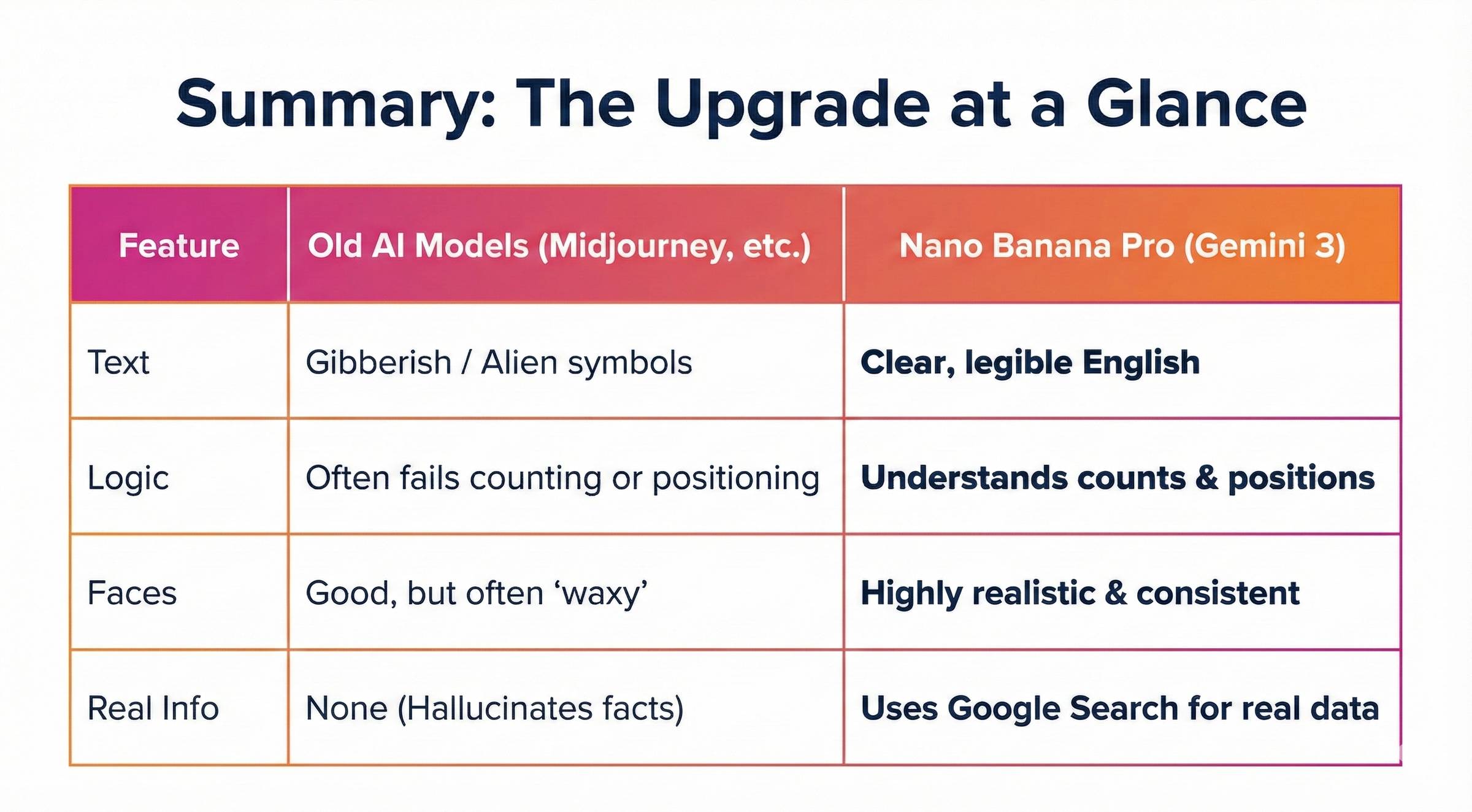
- It Can Finally Read and Write: This is the biggest improvement. Previous AIs would turn text into alien gibberish. Nano Banana Pro can generate perfect text on signs, t-shirts, wedding invitations, and logos.
- It Has "Common Sense" (Reasoning): Because it uses a "thinking" model (LLM) to plan the image first, it understands logic. If you ask for "three red balls and one blue cube," it actually counts the objects and places them correctly. It can even solve visual math equations.
- Real-World Grounding: It is connected to Google Search. You can ask it to "Draw an infographic of the current weather in Seattle," and it will pull the actual weather data and generate a correct graphic.
- Character Consistency: It can "remember" a person's face. You can generate a character and then put that exact same person in 10 different scenarios (eating, running, sleeping) without their face morphing into a stranger's.
5 ways I'm using this (and you can too)
This isn't just about making pretty art. It's about workflow. Here are the specific use cases relevant to what we do.
1. One-Shot Branding & Animation
I wanted a new logo for Watch Me AI. Nano Banana nailed it. Here was my initial prompt:
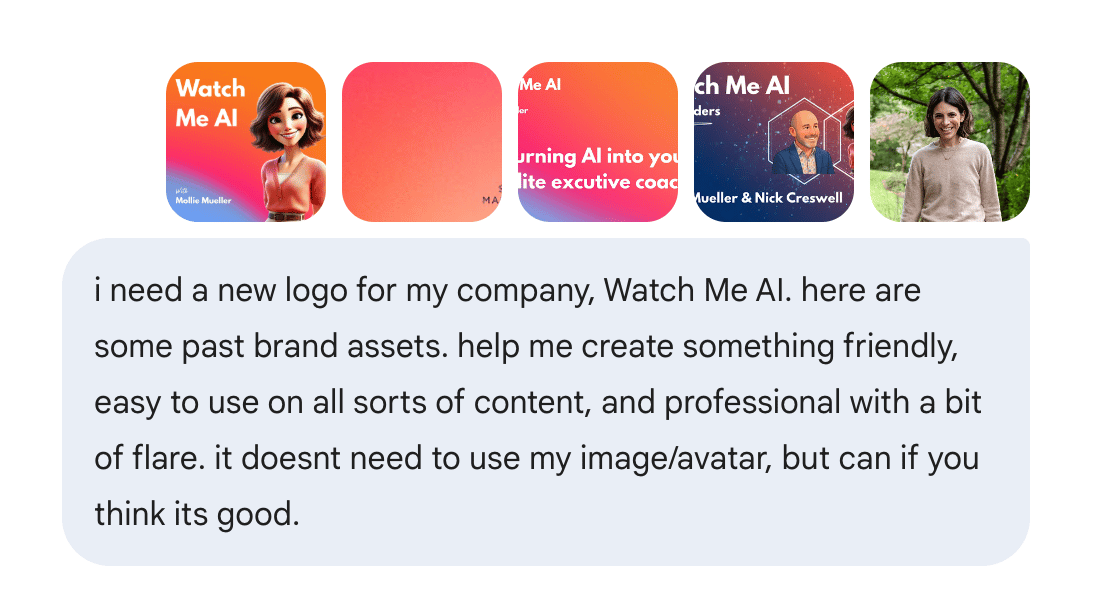
And here are the options I got to in a few minutes:
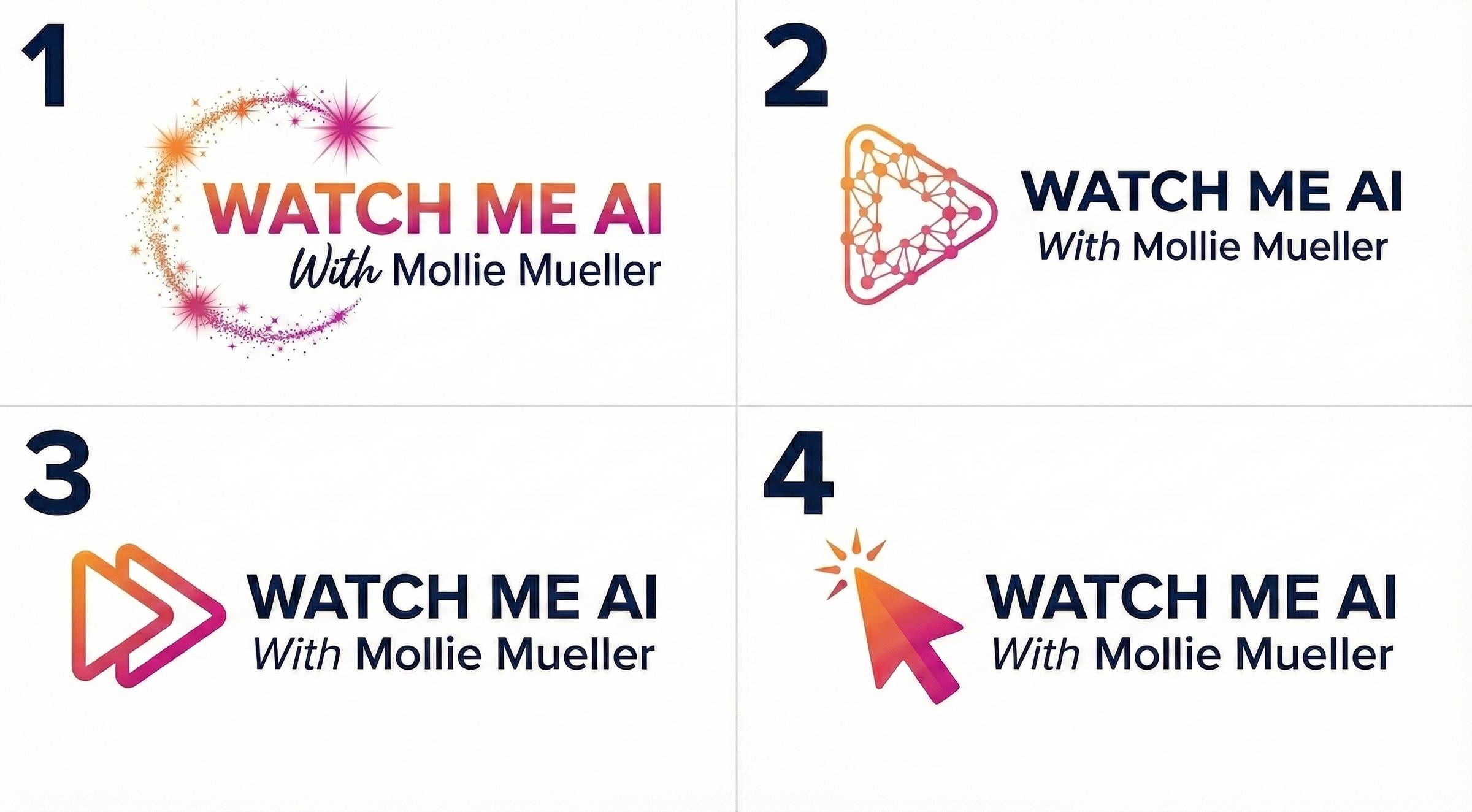
You can vote for your favorite here!
I took it a step further. The embedded video creation feature allows you to take static assets, like your company logo, a family crest, or even a drawing your kid made, and animate them in a fun, magical way.
My prompt for this animation was simply: "can you animate it so we see the sparkles sparkling?"
2. The clearest instruction manuals
This is one of the coolest functional use cases I've seen online. You can upload a photo of a physical object and ask the AI to overlay instructions on it.
- The Example: Someone took a photo of the inside of their car hood and prompted: "Add instructions to this photo of how to change the air filter."
- The Result: The AI drew arrows to the exact latches and parts, with text labels explaining the process.
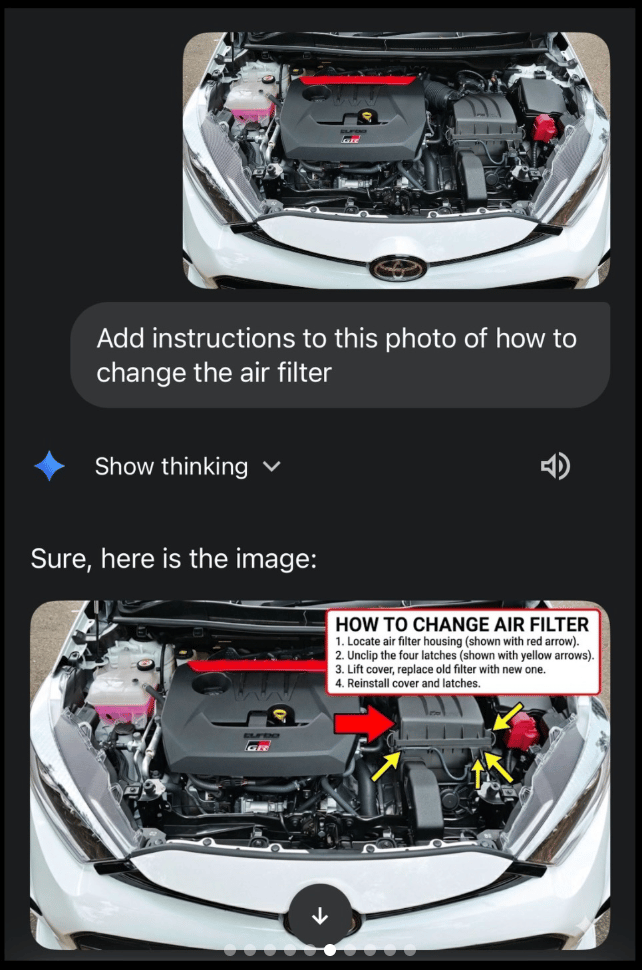
Think about the applications for this: troubleshooting something broken in your house, explaining a setup to a client, or creating quick how-to guides.
3. Incredible visual summaries of complicated information
We are moving beyond simple images into "Data Storytelling."
I saw a great example from Eric Sun, who created a one-shot infographic for the Acquired Podcast's 3.5-hour episode on Trader Joe's. He fed the AI the context of the episode, and it synthesized hours of audio content into one detailed, accurate visual map.
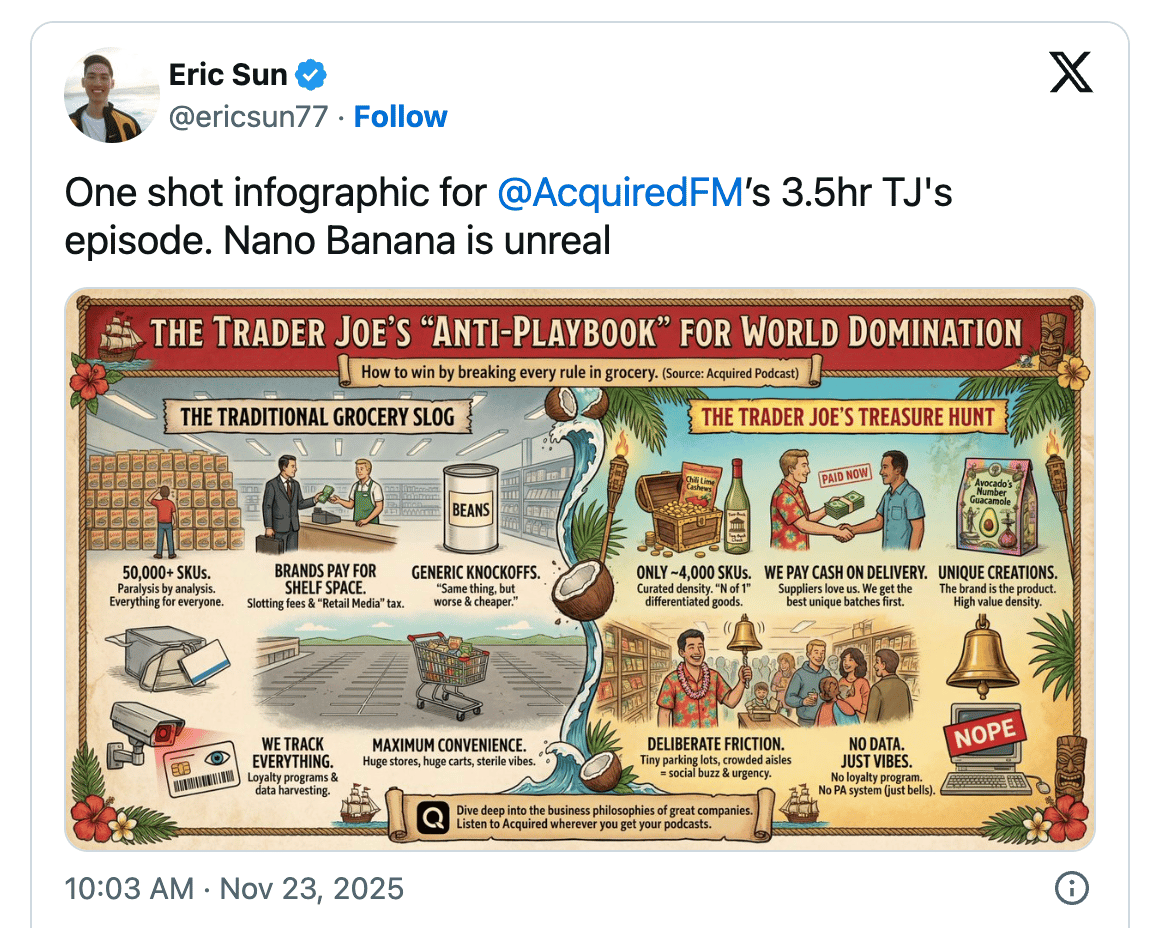
I'm guessing his one-shot prompt was something like:
"Here is the transcript/summary of the Acquired Podcast episode about Trader Joe's business model. Synthesize this entire episode and summarize it as a clear visual diagram in Trader Joe's branding"
For what it's worth, I still use Napkin.ai (featured in last week's newsletter) for clean, specific visual diagrams (it's still top-tier for that), but for synthesizing massive amounts of messy content into one visual story, Nano Banana is a beast.
4. The Course Creator Workflow (Transcript -> Visuals)
I'm currently recording modules for my new course. My usual process is to speak through an outline to find my flow, then record the final version.
With Nano Banana, I've added a step that saves me hours of design time.
My prompt:
"Here's my script for a module of my AI for leaders course im recording. Can you turn this into a few great infographics i can share on screen as i talk? Please create in my brand colors, which are in the attached image."
Because the model understands the logic of the text, it creates slides that actually match what I'm saying.
5. Visual Explainer Breakdowns
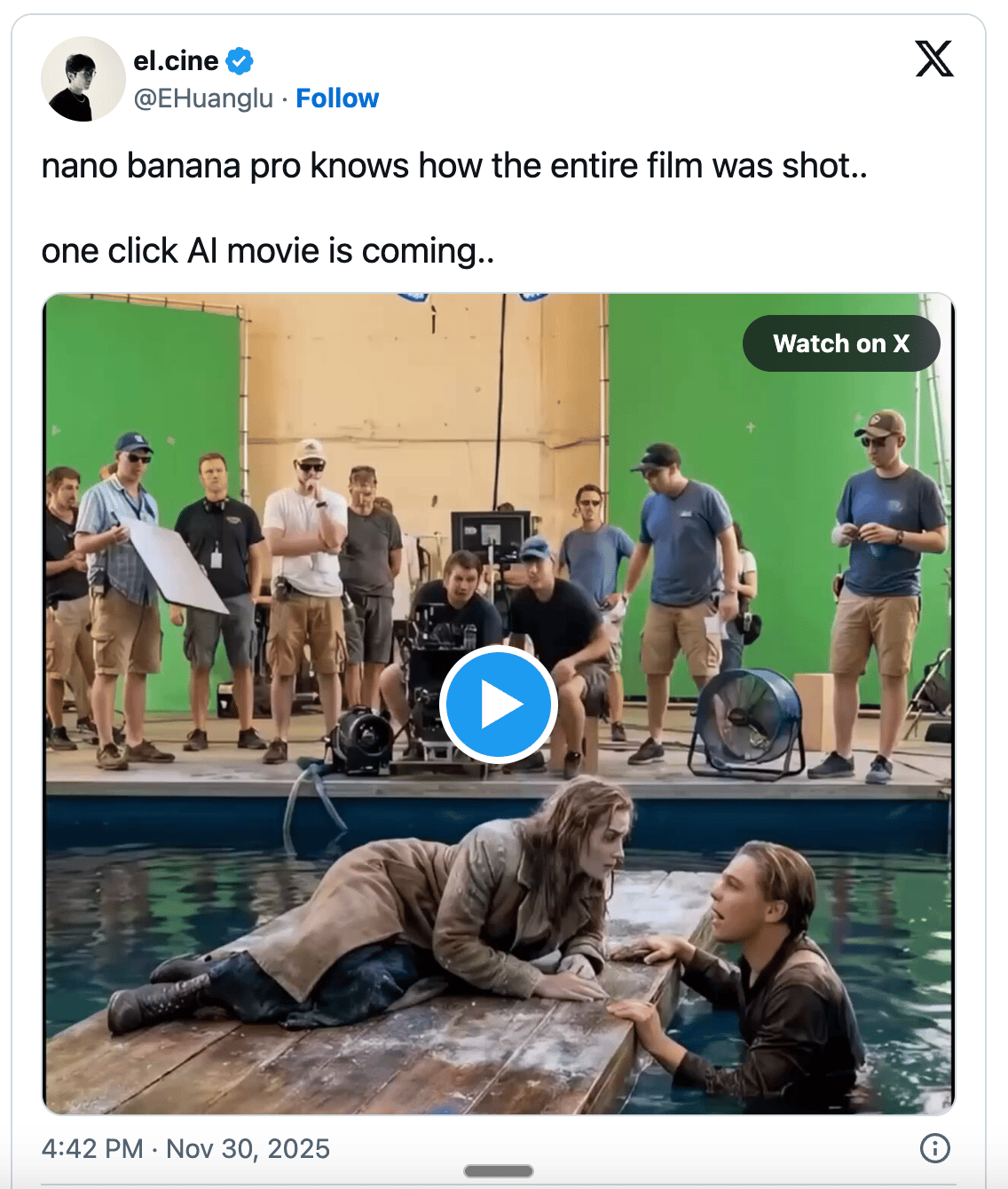
Because the model has "common sense," it can reconstruct scenes. People are using it to break down how movie scenes were filmed, asking it to draw the lighting setup and camera angles. It infers the technical details from the final image and draws the "behind the scenes" diagram.
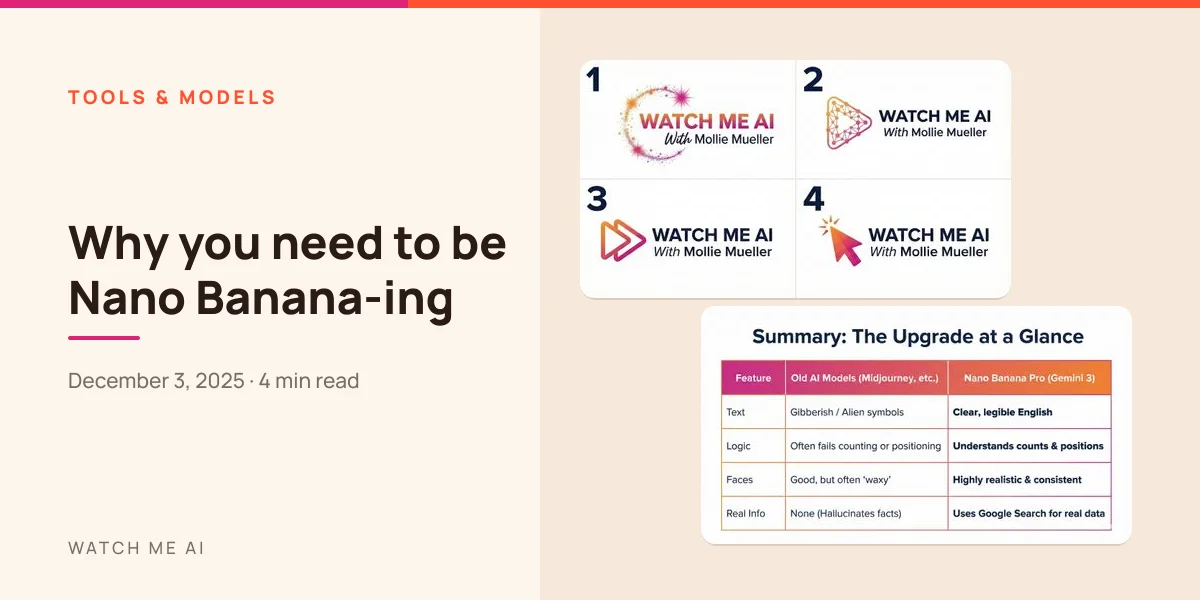
Summary: The Upgrade at a Glance
If you're skimming, here is the difference between what we used to use and what we have now:
This technology is moving fast. My advice? Pick one of the use cases above, maybe the "instruction manual" photo or the slide creation, and try it out this week.
See you next time (unless the internet shifts again).
Mollie